Samsung HEIF Photos: On or Off, How to Turn It Off and Convert Them
You take a photo on your Samsung Galaxy, move it to your laptop or try to upload it to a form, and it turns out to be a .heic file with no preview, or the site says the format isn't supported. Nothing is broken: a camera setting is saving your photos as HEIF to use less storage. Here's what that setting does, whether to keep it on or off, how to turn it off on a Galaxy S23, S24, S25 or any other One UI phone, and how to fix the photos you already have.
What "High efficiency pictures" does
Samsung's camera settings include a toggle called High efficiency pictures. Samsung describes it as a way to save space by capturing pictures in HEIF (high efficiency image) format, and warns that some apps and websites don't support HEIF pictures. The files are saved with a .heic extension, the same one iPhones use.
With the toggle off, the camera saves JPG, the format every device and website understands. The change only applies to new photos: anything you've already shot in HEIF stays that way.
How to turn off HEIF on a Samsung Galaxy
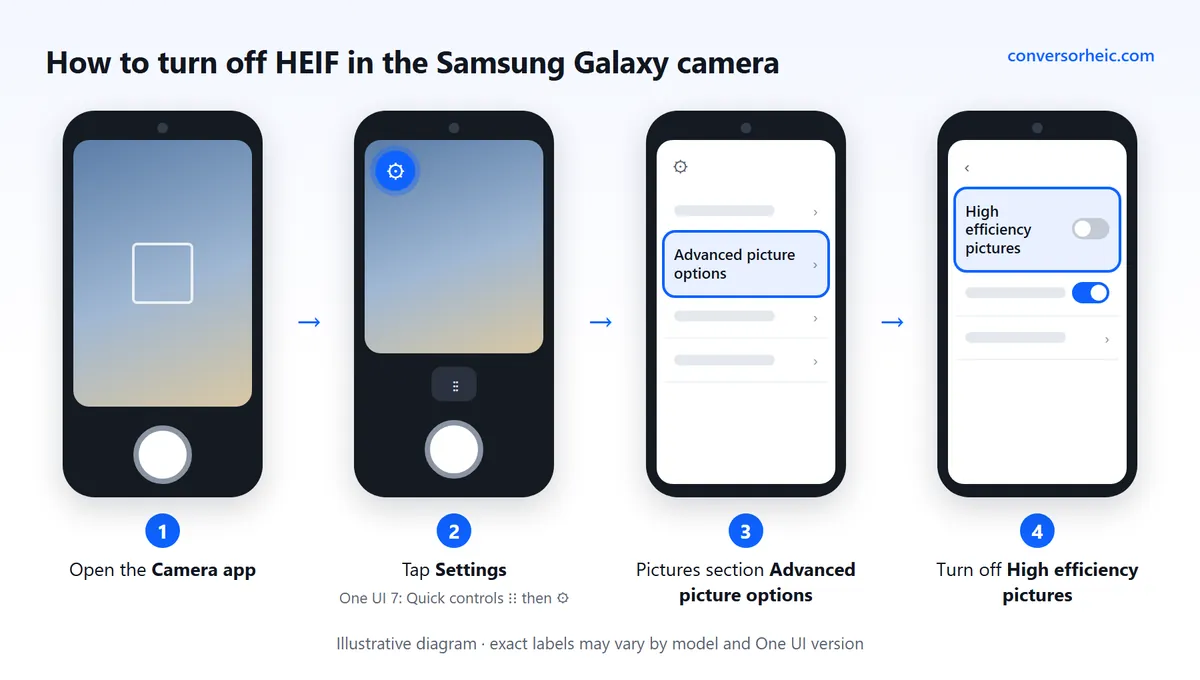
The steps depend on your One UI version more than on the model. A Galaxy S23 or S24 updated to One UI 7 has the new camera layout, the same one the S25 series ships with.
- Open the Camera app.
- Open the camera settings:
- One UI 7 or later: tap the quick controls button (four dots) below the viewfinder, then tap the Settings icon.
- One UI 6.1 or earlier: tap the Settings icon in the top left corner.
- Tap Advanced picture options.
- Switch off High efficiency pictures.
- Take a test shot and check that it's saved as a .jpg.
Why Samsung HEIF photos won't open elsewhere
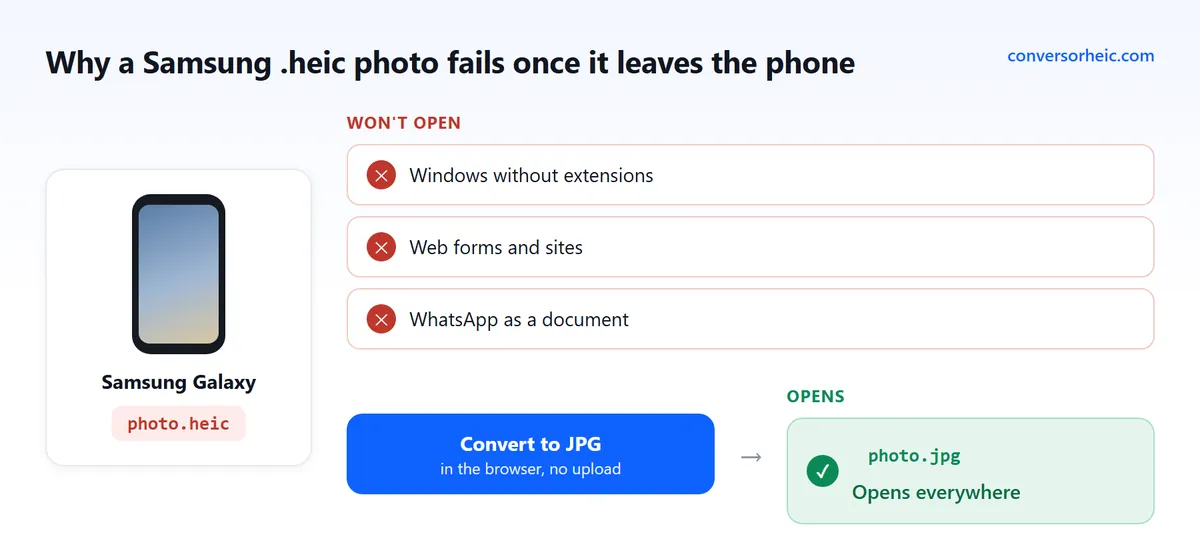
On the phone itself, the photos look fine. Problems start when they leave it:
- Windows doesn't open HEIC out of the box. You need Microsoft's HEIF and HEVC extensions, which I cover in how to open HEIC files on Windows 11.
- Websites and online forms: job portals, government forms and photo printing services often accept only JPG or PNG, so the upload fails or shows no preview.
- WhatsApp documents: send a photo as a document and the original .heic goes through, so the other person may see a file with no thumbnail. More on that in HEIC photos on WhatsApp.
How to convert the HEIC photos you already have
Turning the setting off won't change your existing photos. To turn them into JPGs:
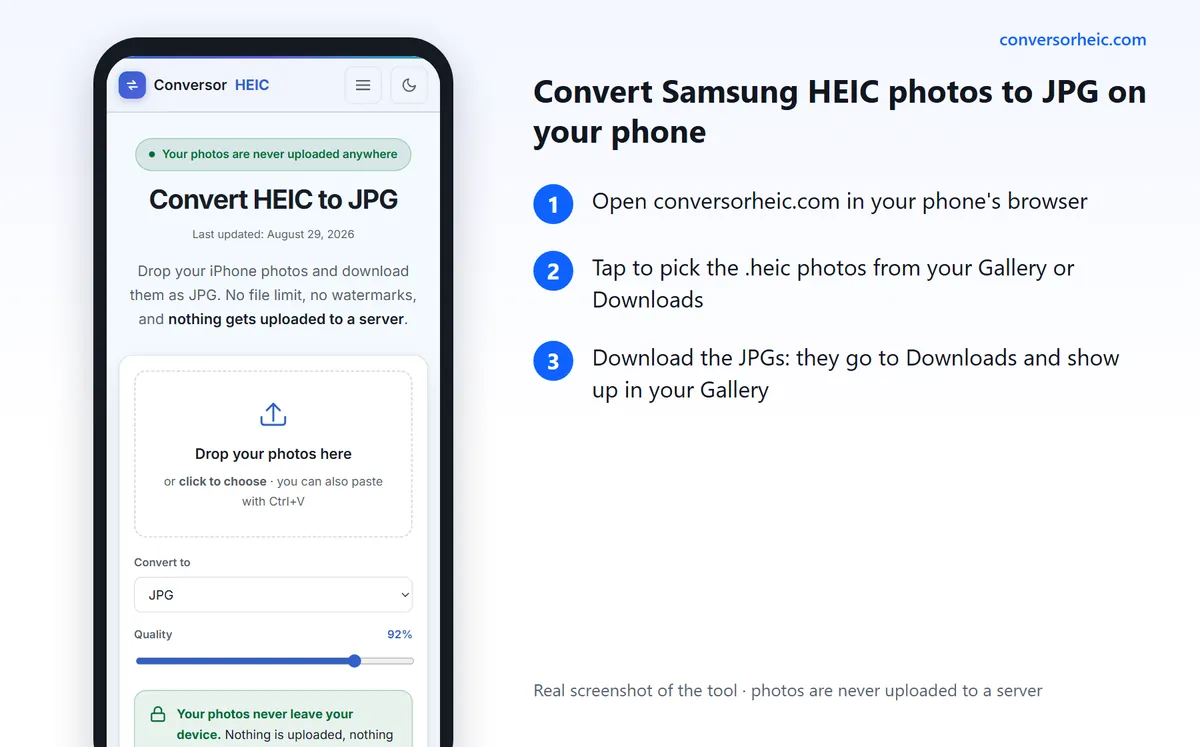
- Open the HEIC to JPG converter in your phone or computer browser.
- Pick the photos. You can select several at once.
- Download the JPGs one by one or all together as a ZIP. On your phone they land in Downloads and show up in the Gallery like any other photo.
Everything happens in your browser: your photos are never uploaded to a server. Converting also strips EXIF metadata such as GPS location.
Convert them all to JPG at once, free and without uploading them anywhere.
Convert HEIC to JPG
Does turning off HEIF convert my old photos?
No. The setting only changes the format of new photos. Existing HEIC files need converting, for example with an in-browser converter.
Samsung HEIF vs JPG: file size
Samsung pitches the setting as a space saver but doesn't publish a figure. The most quoted number comes from Apple when it switched to HEIC in 2017: roughly half the size of a JPG at the same visual quality. I dig into that in HEIC vs JPG file size. Your own savings will vary from scene to scene; the reliable way to check is to take the same shot with the setting on and off and compare the file sizes.
Samsung HEIF: on or off?
- Keep it on if you're short on storage and your photos stay on the phone or in the cloud.
- Turn it off if you often move photos to a Windows PC, upload them to websites or forms, or get them printed.
- Middle ground: leave it on and convert only the photos you share outside your phone.
Frequently asked questions
How do I turn off HEIC on my Samsung phone?
In the Camera app, open Settings (on One UI 7, from the quick controls below the viewfinder), tap Advanced picture options and switch off High efficiency pictures. New photos will be saved as JPG.
Why is my Samsung saving photos as HEIC?
Because High efficiency pictures is switched on in the camera settings. It saves photos as HEIF to use less space; turn it off to go back to JPG.
Should I use HEIF or JPG on my Samsung?
HEIF takes up less space at similar quality; JPG opens everywhere. If you share a lot outside your phone, JPG saves you hassle.
Will turning off HEIF convert the photos I already have?
No. It only changes the format of new photos. Older ones need converting to JPG, for example with a HEIC to JPG converter in your browser.
Why can't I upload my Samsung photos to a website?
Many websites and forms only accept JPG or PNG, and Samsung itself notes that some apps and websites don't support HEIF. Convert the photo to JPG before uploading it.
Where is the setting on the Galaxy S24 or S25?
On both it's under Advanced picture options in the camera settings. On One UI 7 or later, you reach the settings from the quick controls below the viewfinder.
Sources
- Samsung US: The best camera features on your Galaxy S23 (High efficiency pictures and the compatibility warning).
- Samsung Colombia: How to use the camera on your Galaxy phone (Spanish; opening camera settings on One UI 6.1 and 7).
- Samsung India: Changes in Camera controls layout on Galaxy S25.
← Back to the blog · How to convert HEIC to JPG on any device